Managing Your Payments and Invoices
This guide provides a comprehensive overview of how to manage your payments and access your invoices within the Bouncify application.
Viewing Your Invoices
All your invoices are conveniently listed in the Invoices section. This table provides a clear overview of your payment history, including subscriptions, one-time payments (Pay-As-You-Go), and verification orders.
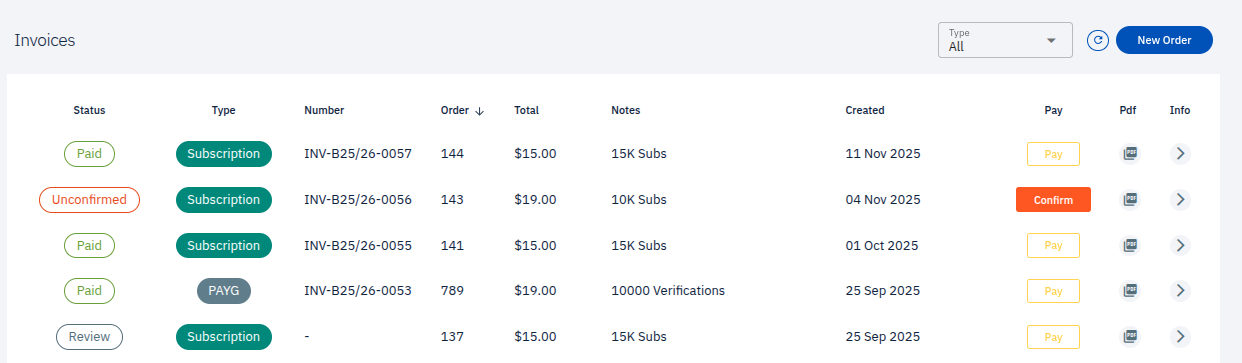
The invoices table includes the following columns:
- Status: Indicates the current status of your invoice.
Paid: The invoice has been successfully paid.Unconfirmed: The payment is pending confirmation.Review: The invoice is under review.
- Type: The category of the order. This can be
Subscriptionfor recurring payments orPAYG(Pay-As-You-Go) for one-time purchases like email verifications. - Number: The unique identifier for the invoice.
- Order: The order number associated with the invoice.
- Total: The total amount for the invoice.
- Notes: Additional details about the order, such as the number of subscribers or verifications purchased.
- Created: The date the invoice was generated.
- Pay: A button to complete the payment for an outstanding invoice.
- Pdf: An option to download a PDF copy of your invoice for your records.
- Info: Access more detailed information about the invoice.
Filtering Your Invoices
You can filter your invoices by type to easily locate specific transactions.

To filter your invoices:
- Click on the Type dropdown menu at the top right of the invoices table.
- Select one of the following options:
- All Orders: Displays all invoices, regardless of type.
- Pay-As-You-Go: Shows only invoices for one-time purchases.
- Subscriptions: Lists all invoices related to your recurring subscriptions.
Creating a New Order
To make a new purchase or start a new subscription, click the New Order button located at the top right of the Invoices section. You will be guided through the process of selecting a plan and completing your purchase.