API Keys
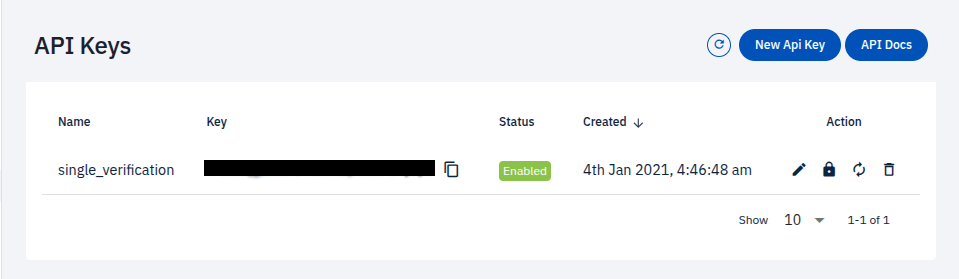
The Bouncify API uses API keys to authenticate requests. You can create and manage your API keys from the Bouncify dashboard. Each key is uniquely generated, and you can create as many as you need.
Create a New API Key
To start using the Bouncify API, you first need to create an API key.
-
From the API Keys page, click the New Api Key button.

-
Enter a descriptive Name for your key to help you identify it later. This is useful if you have multiple keys for different applications.
-
Click the check icon to create the key.
Your new API key will be displayed in the list.
Managing Your API Keys
Once you've created an API key, you have several options to manage it. In the Action column, you'll find a set of icons that allow you to perform the following operations:
- Secure Key: Represented by a lock icon, this allows you to configure IP whitelisting and blacklisting for enhanced security.
- Edit Key: The pencil icon lets you change the key's name and status.
- Regenerate Key: Use the circular arrows icon to regenerate the key if it's compromised.
- Delete Key: The trash icon permanently removes the key.
This guide will walk you through each of these actions in detail.
Edit an API Key
You can edit the name and status of an API key at any time.
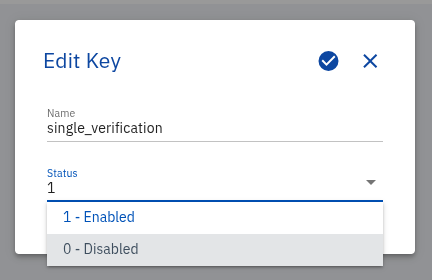
- Click the edit (pencil) icon next to the key you want to modify.
- In the Edit Key dialog, you can:
- Change the Name to something more descriptive.
- Update the Status to
Enabledto keep it active orDisabledto deactivate it.
- Click the check icon to save your changes.
Secure Your API Key
For enhanced security, you can restrict access to your API key by whitelisting or blacklisting specific IP addresses.
- Click the lock icon next to the key you want to secure.
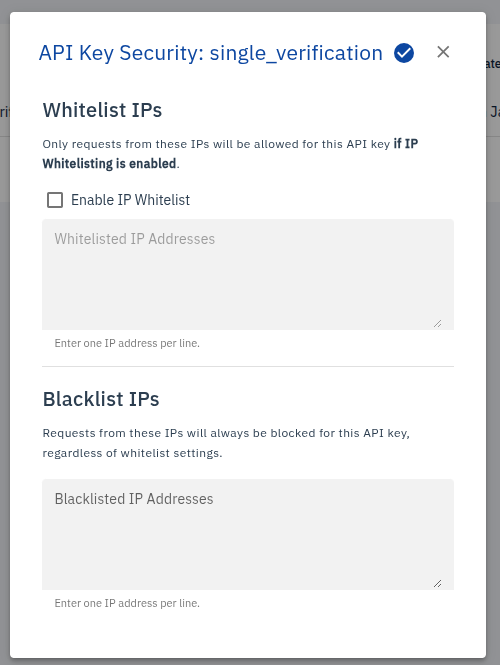
- In the API Key Security dialog, you can configure the following:
- Whitelist IPs: Check Enable IP Whitelist and enter the IP addresses that are permitted to make requests with this key. Only requests from these IPs will be allowed.
- Blacklist IPs: Enter any IP addresses that should be explicitly blocked. Requests from these IPs will always be denied, even if they are in the whitelist.
Enter one IP address per line in both fields.
Regenerate an API Key
If you suspect your API key has been compromised, you should regenerate it immediately. This action creates a new key while keeping the same name and settings, but the old key will be permanently invalidated.
- Click the regenerate (circular arrows) icon.
- Confirm the action when prompted. The old key will no longer be valid, and you will need to update your applications with the new one.
Delete an API Key
If you no longer need an API key, you can permanently delete it. Be aware that this action is irreversible.
- Click the delete (trash) icon next to the key you want to remove.
- A confirmation dialog will appear to prevent accidental deletion. Click DELETE to confirm and permanently remove the key.
Once an API key is deleted, it cannot be recovered. Any application using this key will no longer be able to access the Bouncify API.
